 XI Wiki


So trying to set up a powershell script to do a few tasks and automate an install at my new job. We have a MSI file located on a share drive, I can install the file via:
msiexec /i "installpath"
but this brings up UAC control, if I use /qn toggle for quiet install it just won't install at all. Anyone know a way to bypass this so I don't have to go around and click "yes" on all the machines? It's not a huge issue as i'm installing them on site and not remotely.
Another issue that's bigger though is this:
msiexec /i "installpath" TARGETDIR="C:\path"
doesn't work it seems. Does TARGETDIR just not work in powershell and if so, what's the command to specify a target directory? I know it works in cmd as that's how I installed this msi a few days ago so I suppose I could just make a .bat file, but i'm curious why it's not working for me in powershell so figured I would ask.
- Navigation
Results 1 to 11 of 11
-
2013-06-14 08:17 #1Ridill

- Join Date
- Jul 2008
- Posts
- 11,400
- BG Level
- 9

Powershell Scripting +MSI +UAC is annoying
-
2013-06-14 08:56 #2Piece of shit Bruins fan

- Join Date
- Jun 2008
- Posts
- 5,520
- BG Level
- 8
- FFXIV Character
- Beat Daisukenojo
- FFXIV Server
- Hyperion


If you set the script up to run as a scheduled job, you should be able to get around the UAC control.
As for the msiexec variables, try using Invoke-Expression. Set your command to $command or some other string, then 'Invoke-Expression $command'.
https://social.technet.microsoft.com...ke-Command_ICM
Alternatively, if you have WMI set up on all your workstations, then try Invoke-Command instead. That should also eliminate your UAC issue.
-
2013-06-14 09:19 #3Ridill
- Join Date
- Jul 2008
- Posts
- 11,400
- BG Level
- 9
I think I found one of my problems now, INSTALLDIR and TARGETDIR are giving me unrecognized command errors. Arnt these installed by default on Windows 7 or are they part of something else?
-
2013-06-14 09:27 #4Piece of shit Bruins fan
- Join Date
- Jun 2008
- Posts
- 5,520
- BG Level
- 8
- FFXIV Character
- Beat Daisukenojo
- FFXIV Server
- Hyperion
They're not commands. They're arguments for MSIEXEC and PowerShell has no idea where a command stops and a variable starts. That's why you need to put it all in one string and then execute the command string with Invoke-Expression or Invoke-Command. Originally Posted by Meresgi

-
2013-06-14 10:35 #5Ridill
- Join Date
- Jul 2008
- Posts
- 11,400
- BG Level
- 9
So basically something like this?
I was able to write this code but my main issue is the fact that I can't move items in C: as it gives a permission error.$installcommand = "msiexec /i Y: path\installer.msi TARGETDIR=C:\Installhere\"
Invoke-Expression $installcommand
rm C:\GameMaker
RM $home\Desktop\KOC
mkdir $home\Desktop\KOC
msiexec /i "Y:\audit\hr\GameMaker-8.1.142.msi"
mkdir C:\GameMaker
while (!(Test-Path C:\Game_Maker.exe -PathType leaf))
{
Write-Host "CHECKING"
}
Start-Sleep -s 5
Move-Item C:\Game_Maker.exe C:\GameMaker\
-
2013-06-14 10:52 #6Ridill
- Join Date
- Jul 2008
- Posts
- 11,400
- BG Level
- 9
My whole setup seems really funky honestly now that i'm looking at it. If I run PS as Admin and then run my script it doesnt work because it thinks Y: drive doesn't exist, but testing the script in ISE works fine.
-
2013-06-14 10:57 #7Piece of shit Bruins fan
- Join Date
- Jun 2008
- Posts
- 5,520
- BG Level
- 8
- FFXIV Character
- Beat Daisukenojo
- FFXIV Server
- Hyperion
Yes, that's how you should use Invoke-Expression, though you will likely want to encase your string in single quotes so that your TARGETDIR can use the double-quotes if you need to use Program Files or somesuch. Like so:
Are you running PowerShell as administrator? If you're having UAC problems, then that's probably why you're getting the permission error on C:\, as Win7 is pretty finicky about what you do in the file root.$installcommand = 'msiexec /i Y: path\installer.msi TARGETDIR="C:\Program Files\Boobies\" '
Also once you get this working you'll probably want to add to your first two lines -ErrorAction SilentlyContinue so that if the folders don't already exist, the script will still run.If you log in as Administrator, does the Y: drive map? Use UNC paths instead so that you can avoid issues with login scripts and the like. Originally Posted by Meresgi
-
2013-06-14 11:02 #8Ridill
- Join Date
- Jul 2008
- Posts
- 11,400
- BG Level
- 9
Yeah running PS as admin, this is the error I get when I just run a simple msiexec /i "Targetpath.msi"
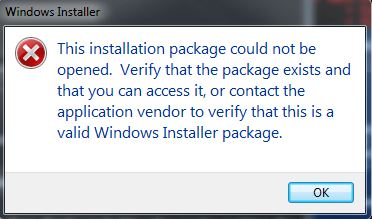
It runs fine though using just the command Y:\path.msi w/o the msiexec /i before it. Granted I think this program is made by a company of like 2 people or something so maybe they didn't set up the msi properly?
It appears running the .ps1 from the C:\ gets rid of the access denied errors.
-
2013-06-14 11:14 #9Piece of shit Bruins fan
- Join Date
- Jun 2008
- Posts
- 5,520
- BG Level
- 8
- FFXIV Character
- Beat Daisukenojo
- FFXIV Server
- Hyperion
If Administrator doesn't have a login script that maps Y: to some path, then it won't ever see the Y: drive. Change your Y: drive to a UNC path, like \\myserver\sharefolder and it should work.
-
2013-06-14 13:13 #10Ridill
- Join Date
- Jul 2008
- Posts
- 11,400
- BG Level
- 9
The machines i'll be putting this on have the Y drive mapped from a login script:
From my test this works fine on my machine, it installs the program, moves the items to the correct directory, runs the license stamper, then creates a shortcut in the folder it needs to.$wshshell = New-Object -ComObject WScript.Shell
$desktop = [System.Environment]::GetFolderPath('Desktop')
mkdir $home\Desktop\KOC
Y:\audit\hr\GameMaker-8.1.142.msi
mkdir C:\GameMaker
while (!(Test-Path C:\Game_Maker.exe -PathType leaf))
{
}
Start-Sleep -s 5
Move-Item C:\Game_Maker.exe, C:\lib\, C:\BackGrounds\, C:\Examples\, C:\extensions\, C:\html\, C:\Sounds\, C:\Sprites\, C:\tutorials\, C:\License.txt, C:\snippets.txt, C:\dxdata, C:\fnames, C:\Game_Maker.chm, C:\libeay32.dll, C:\rundata C:\GameMaker
Start-Sleep -s 5
Y:\audit\hr\licenseStamper-8b9b4140-b3d6-012f-7cf9-001b218ccdac.exe
$lnk = $wshshell.CreateShortcut($desktop+"\Game_Maker.lnk ")
$lnk.TargetPath = "c:\GameMaker\Game_Maker.exe"
$lnk.Save()
Move-Item ($desktop+"\Game_Maker.lnk") ($desktop+"\KOC\")
Only thing I need now is to make it so I dont get the prompt when running the MSI of "Are you sure you want to run this file?"
Edit: @Cutriss
Doing the UNC mapping seems to work with msiexec, thanks for that, going to test it out and see how it works.
-
2013-06-14 13:54 #11Piece of shit Bruins fan
- Join Date
- Jun 2008
- Posts
- 5,520
- BG Level
- 8
- FFXIV Character
- Beat Daisukenojo
- FFXIV Server
- Hyperion
Sort of but not really. Your machines don't have login scripts - your domain users do. The local Administrator account on each machine (which is the context within which "Run As Administrator" works) probably doesn't. Originally Posted by Meresgi
IE - if you log into the machine as THISCOMPUTER\Administrator, it probably does not run a login script, and thus it doesn't map Y:. That's why when you run the script as Administrator, Y: doesn't exist.

